Universal Settings: set it once, not per tool
Set grade level, language, translations, and other shared defaults once for the whole lesson.
- Best for
- Every teacher
- Typical use
- 2-minute preflight
Search the guide
Type one or more words to search every chapter.
Universal Settings is one card that holds the choices every generator inherits. Set the grade level once and the glossary, the quiz, and the adapted text all target that grade. Set it per tool instead and the parts of one lesson pack quietly disagree with each other.
Open it before you generate anything. That single habit prevents most of the "why does this pack feel mismatched" problems teachers report.
If you have not made a resource yet, start with Start here. To see how these settings fit a full planning routine, see Prepare a lesson.
What the card controls
The panel gathers the settings that would otherwise repeat in every tool.
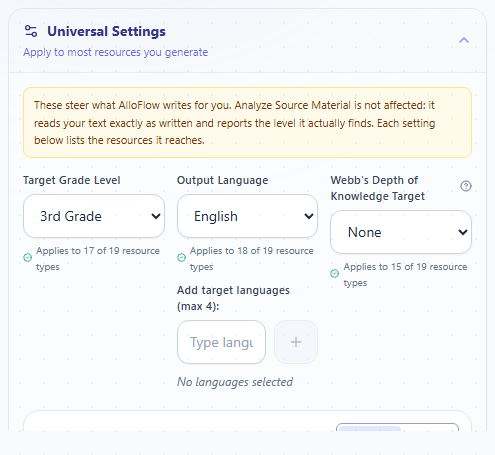
Interface reference captured August 16, 2026 from the public AlloFlow deployment. The note at the top and the "applies to" lines under each control state exactly which resources a setting reaches.
| Setting | What it does | Where you notice it |
|---|---|---|
| Grade level | Sets the reading and complexity target for new resources. | Sentence length, vocabulary, and question difficulty. |
| Output language | Sets the language generated content is written in. | The text students read. |
| Translations | Decides whether a second-language version is attached. | A translation block beside the main content. |
| Standards | Supplies the standard or framework the content should align to. | Quiz items, objectives, and lesson plans. |
| Student interests | Adds a theme or context to examples. | Word problems, scenarios, and prompts. |
| Depth of Knowledge | Sets the level of thinking the task should demand. | Question stems and task verbs. |
| Emoji | Adds emoji as visual cues in generated material. | Glossary terms, headings, and directions. |
Each control tells you how many kinds of resource actually use it. Read that number before you spend time on a setting. Some controls reach almost everything; others reach two or three tools.
You can collapse the card once you are done. The summary line stays visible, so you can check your choices without opening the panel again.
The rule that surprises teachers
Universal Settings applies to new work only.
A resource keeps the settings it was built with. If you generate a glossary at grade 3, then change the grade to grade 7, the glossary you already have is still grade 3. Nothing rewrites itself.
So if a pack looks inconsistent:
- Check the summary line for the settings in force now.
- Find the resource that looks wrong.
- Regenerate that resource, or regenerate the pack, so every part shares one setting.
This is worth checking before you conclude a tool got something wrong. A mismatched pack is usually a settings history problem, not a generation problem.
Choose a grade level honestly
The grade level is a target, not a guarantee. Generated text often lands above the grade you asked for, and asking for more research or more detail tends to push it higher still.
Do this before you share:
- Read a paragraph aloud and listen for sentences a student would lose track of.
- Look for words you would have to stop and define.
- Compare the result against something you know sits at the right grade.
If it reads high, ask for a lower grade than you want and check again. Set the grade for the students who need the most access, then offer the original source to students who are ready for it. Lowering the reading load is not the same as lowering the learning goal. See Prepare a lesson for how to protect the intellectual target while changing the reading level.
Set the language and decide about translations
Two separate controls do two different jobs.
Output language is the language the resource is written in. If your class works in Spanish, set it to Spanish and the content comes back in Spanish.
Translations decides whether a second version rides along with it. It offers three kinds of answer:
- Automatic attaches a version in the language you set the app interface to, whenever the content is in a different language. This is the default.
- None turns second-language versions off everywhere.
- A named language attaches a version in exactly that language.
A hint line under the control always says in plain words what will happen, such as "Resources in Spanish will also include an English version." You do not have to open the list to know where you stand.
The Translations control appears only when it would do something. If your interface and your output language are both English, there is nothing to translate into, so the control stays hidden. It appears as soon as the two differ.
Two cautions:
- A translation is generated text. Check it the way you would check any other generated content, especially for subject vocabulary. A word that is correct in general use can be wrong in a science or mathematics context.
- Ask a proficient speaker to read anything a family will receive. A translation that is merely understandable is not the same as one that is respectful and clear.
Watch emoji around word activities
Emoji make headings and glossary terms easier to scan for some students. They also carry costs worth knowing about:
- Read-aloud tools may name each emoji out loud, which interrupts the sentence.
- Emoji change how a term looks in letter-based activities such as word scrambles and crosswords.
- Some fonts and older devices cannot display every emoji and show an empty box instead.
Turn emoji on when the visual cue helps and you have previewed the result. Turn them off when the same resource will be printed, read aloud, or used in a spelling or letter puzzle.
A two-minute preflight
Before you generate the first resource for a lesson:
- Set the grade level for the students who need the most access.
- Set the output language your class will read.
- Check the Translations line and confirm it says what you expect.
- Add a standard only if you will actually use the alignment.
- Add an interest only if it makes the task clearer, not just more decorated.
- Set Depth of Knowledge to the thinking the goal requires.
- Decide about emoji based on how the resource will be used.
- Collapse the card and confirm the summary line matches your intent.
Then generate one resource and read it before making anything else. See Accessibility and UDL for the learner-experience check, and Troubleshooting if a setting does not seem to take effect.